Keep photos in their original quality
Transfer photos through ClipSync without the compression used by chat attachments.
Online file transfer
Move photos, videos, documents, PDFs, and other files from your phone to a computer using a shared ClipSync room in your browser.
No sign-up. Works instantly.
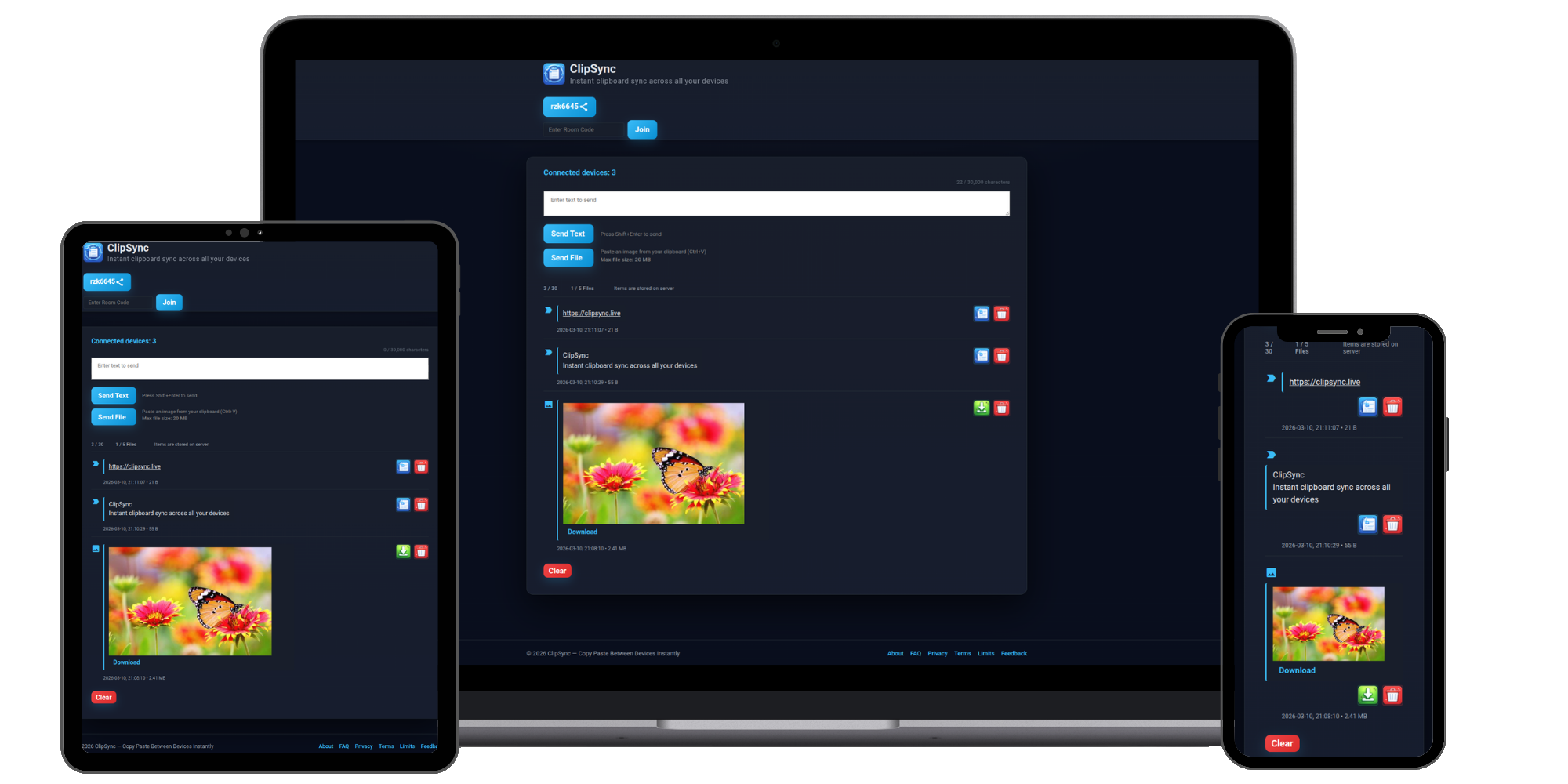
Three simple steps
Create a room on one device, connect your phone and computer, and add the file you want to move.
Step 1
Open ClipSync on your computer or phone. A Free room is created in the browser without an account or installation.
Step 2
Open the same room on your other device using the room code, shared link, or QR code.
Step 3
Upload a file from your phone to the room. Once it appears on your computer, download it.
A quick file handoff
ClipSync is designed for short, intentional transfers between devices, with photos kept in their original format without compression.
Transfer photos through ClipSync without the compression used by chat attachments.
Send a document, PDF, receipt, scan, or other file without using a chat message as a temporary inbox.
Use the same room to send a file from your computer back to your phone when the workflow requires it.
Check the current room limits before sending: Free rooms support files up to 25 MB per file, up to 5 files, and items are automatically cleaned up after 24 hours.
Use a modern browser on each device and open the same room. The file workflow supports common phone-to-computer and computer-to-phone handoffs.
The same room also supports computer-to-phone transfers: add the file from the computer and receive it on the connected phone.
Common questions
Practical answers before you send a file.
You can transfer images and files, including photos, videos, documents, and PDFs.
No. ClipSync keeps photos in their original format without compression, unlike compressed messenger attachments.
Yes. Open the same ClipSync room in the phone and computer browsers, then add the file from the sending device.
Yes. ClipSync works in modern browsers on macOS and Linux as well as Windows, Android, and iPhone devices.
Yes. Add the file from the computer to the shared room, then open the same room on the phone.
No account or installation is required for a Free room. Open ClipSync in a modern browser on both devices.
Ready when you are
Open a free room and connect your phone with your computer.
